Stories Design note
Part of BoomerOS for TV
DirecTV Gemini setup: a senior's worst nightmare
Setting up DirecTV streaming for my parents meant a sign-in nobody could find, an answer hidden on a web page, and a password typed one letter at a time.
I plugged in my parents' new DirecTV Gemini box, and before it would show them any TV, it wanted to update itself. Then it wanted them to sign in. Sign in with who? Their retirement community is moving everyone from cable to DirecTV streaming, and nothing they'd been sent said what account the box wanted. I'm comfortable with this kind of thing, and it still took me at least an hour of hunting, guessing and typing. For an older person on their own, each of those steps is a place to give up, then call the kids or go without TV.
For decades, TV never asked who you were. A cable came out of the wall, went into a box and then the TV, and you pressed channel up or down. People my parents' age are the ones who still watch that way: in 2025, 64% of Americans 65 and older paid for cable or satellite TV, against 36% of all adults.1 Where my parents live, that cable goes off this fall, and its replacement opens with a question.
My parents didn't think they had a DirecTV account, and my mom didn't know what to use. A new one might have meant paying twice, since the community already pays for the service through their homeowners association (HOA) fees. So my mom went back through the emails she'd been sent. One linked to a list of resources, mostly PDF manuals in very small print. None of them had the sign-in details. That was the first hurdle.
So I did what most of us do now when the instructions run out. I asked an AI, which most of my parents' generation wouldn't think to do: in early 2026, 23% of Americans 65 and older had ever used an AI chatbot like ChatGPT.2 Claude, an AI assistant, turned up a page the community had posted back in July. My parents did have an account; nobody had told them. Every resident is registered with the community's resident services under an email address, which is how they get the community's news. The community had given those addresses to DirecTV, and DirecTV had set up a temporary password for each one, printed on that page. Without that email and that password, you can't sign in.
Which email, though? My parents have several, and my mom wasn't sure which one resident services had. We tried them one at a time. It was my dad's.
Knowing the email wasn't the end of it. At one point the box sat spinning and wouldn't let me sign in, and the QR code it had offered for signing in, a square pattern you scan with a phone, vanished. I had to restart it.
That left the remote, and typing with it was a nightmare. There's no keyboard, only the alphabet laid out on the screen. You steer a highlight to each letter, left, down, up, and press OK. The @ means switching to a symbols keyboard. A capital means hunting for the shift key. Then the next letter, all the way through my dad's email address and the password. Once we were in, I changed the temporary password, too.
The whole time, I kept thinking: if you're older and doing this on your own, how are you supposed to figure any of it out? I found the answer because I assumed it was online somewhere and I knew how to ask. A lot of products now count on that. The instructions can be thin, because you can always search or ask an AI. Without me there, my parents would have had to know an answer existed, guess the right words to search for, and pick the right page out of everything that came back. That's where people get left behind.
And all of that was one screen.
They'd been sent two boxes. So the next day I took the second one home, set it up on my own TV and went through it again slowly, the way they would, talking it through out loud as I went.
"Put yourself through the eyes of an older person. Maybe your eyesight's not that good, but you're just not that familiar with technology. I'm kind of familiar with technology. Well, decently familiar, and I would say that the process is not easy."
The guide's checklist assumes a lot
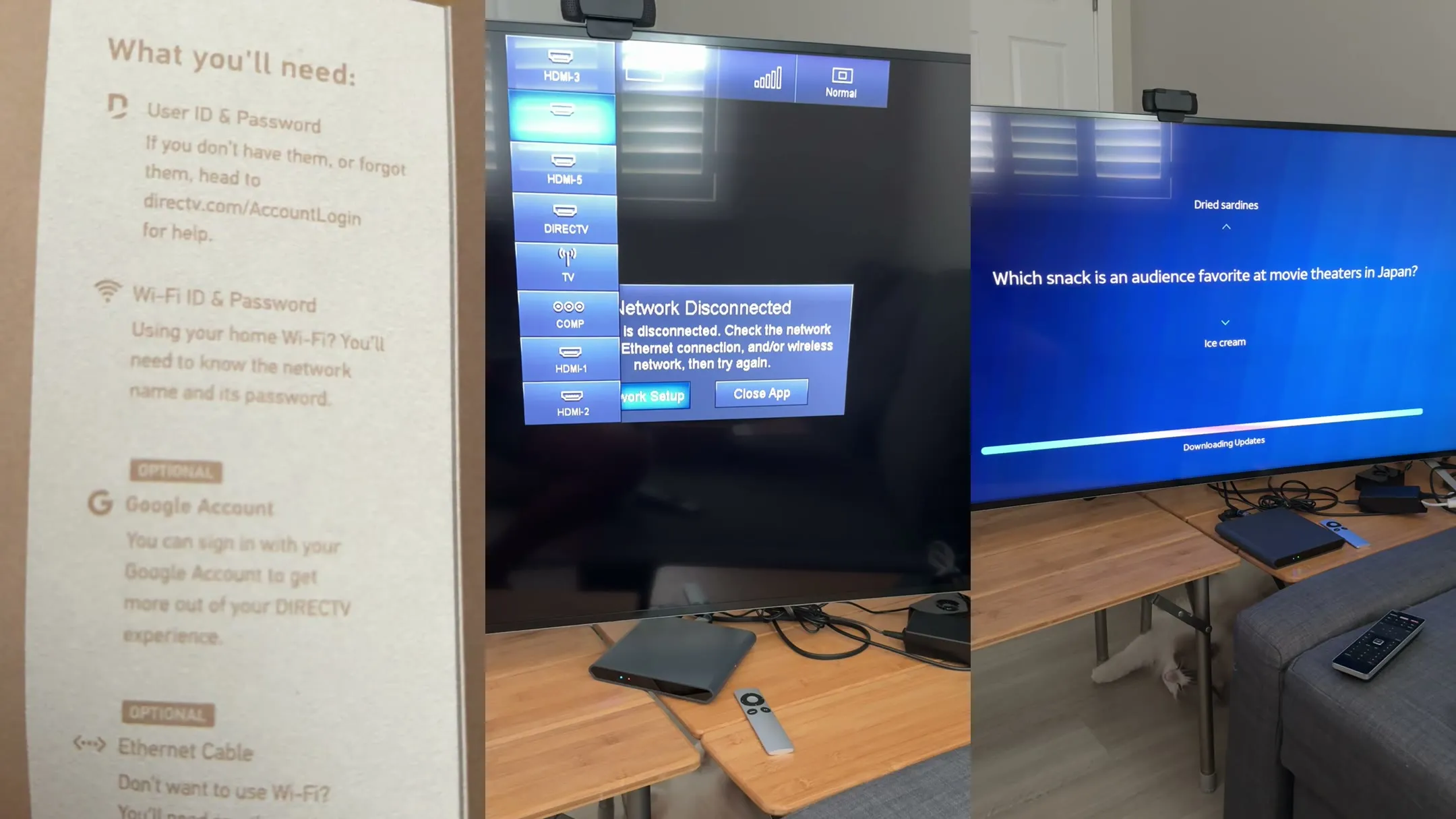
In the box are the DirecTV box itself, a remote, an HDMI cable, a power cable and a short setup guide. The guide does its job. It shows what each part is and what plugs in where.
"The setup guide, you know, it's pretty simple. Well, for most people."
Then it lists what you'll need, and that's where it starts assuming:
- A DirecTV user ID and password, which my parents didn't know they had.
- A Wi-Fi name and password.
- A Google account, marked optional, with no word on what one is or why a TV would want it.
- An Ethernet cable, also optional. That's a network cable from your internet router, though the guide doesn't say so.
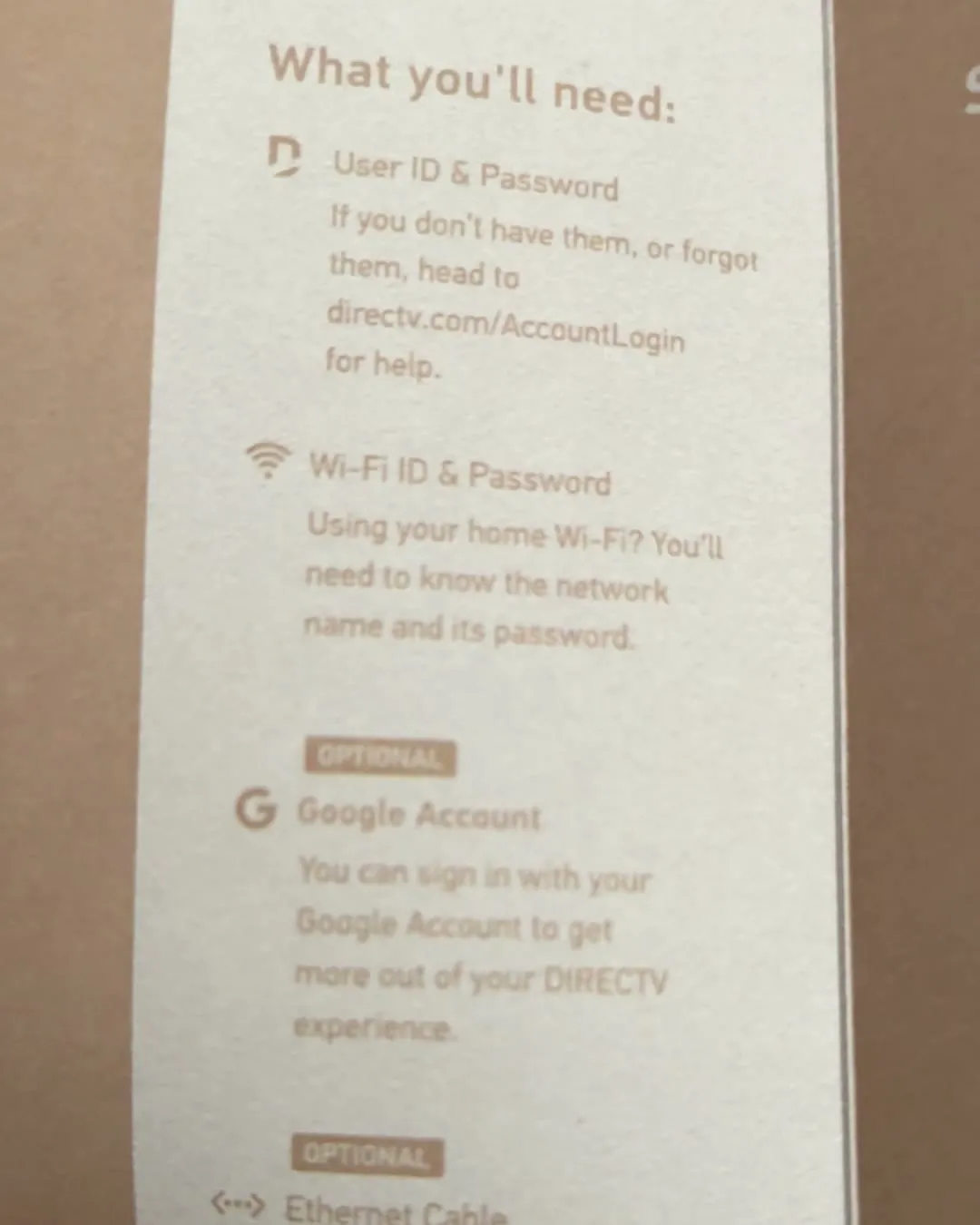
If you've spent your working life around computers, that list takes a few seconds to read. If you haven't, it's four questions before you've plugged anything in.
Getting a picture takes some guessing
With the box plugged in, the TV has to be switched to it. A TV has several inputs, one for each socket on the back, and I didn't remember which socket I'd used. I tried two, then three, then four. Once I'd found it, the TV's input list showed the box by name, which will help next time.
Then a message saying Network Disconnected popped up over everything, with two buttons, Network Setup and Close App. I couldn't make it go away.
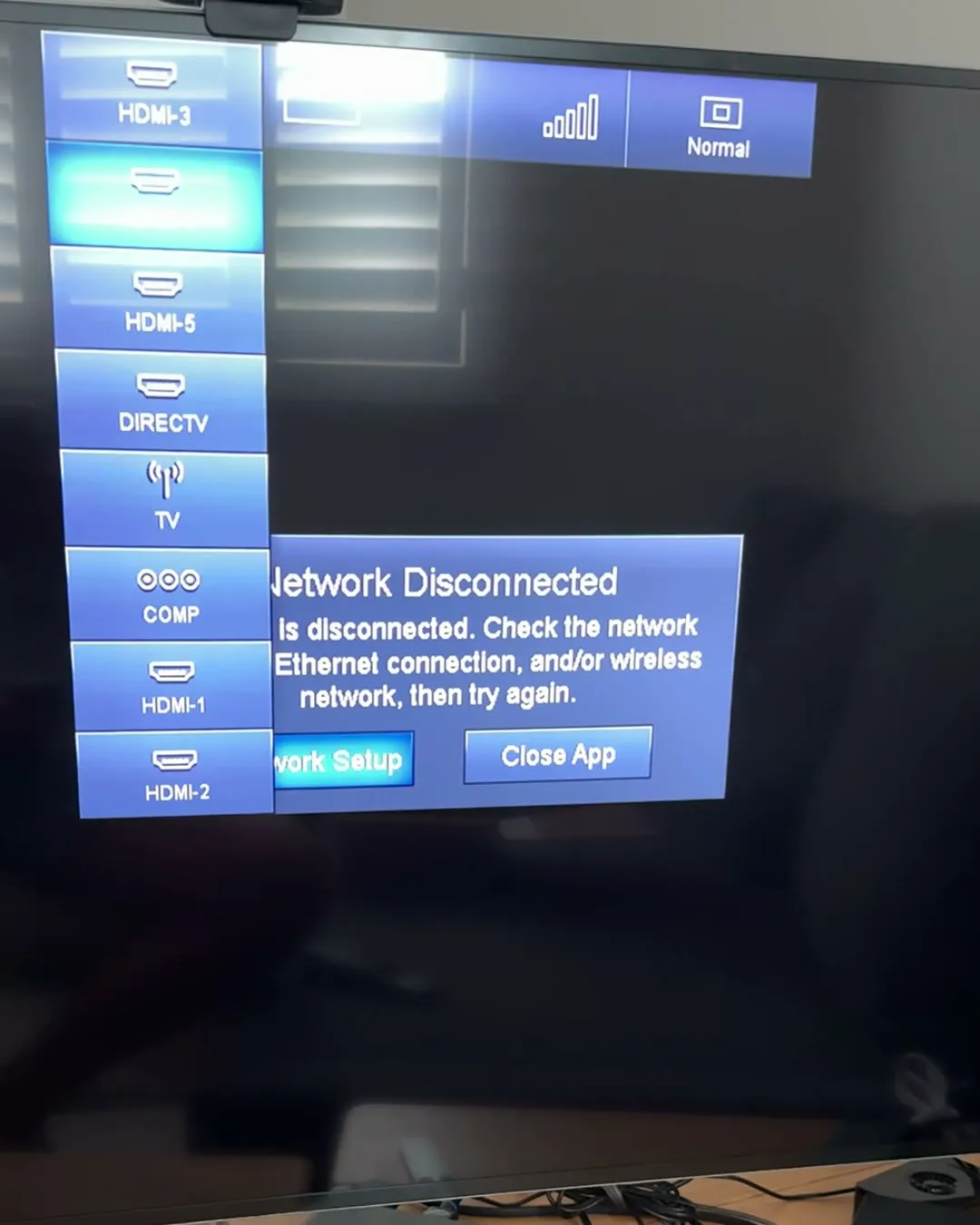
"Network disconnect, how do I get rid of this? Now I feel like an old person."
I turned the TV off to get rid of it, and when it came back the screen said No Signal. The box's power cable had come undone. Once it was back in and the box was on, the waiting began. I still hadn't reached the screen that had stopped us the day before.
"Lots of waiting. I just want to watch TV."
A password typed one letter at a time, then a long wait
Once the box has a picture, it wants to get online. That means your Wi-Fi password, and you type it with the remote. I'd done this once already at my parents', with an email address. It hadn't gotten faster overnight.
Most of us only ever type a password on a phone or a keyboard. Here it's the same on-screen keyboard as the day before: one letter, one press of OK, then steer to the next.
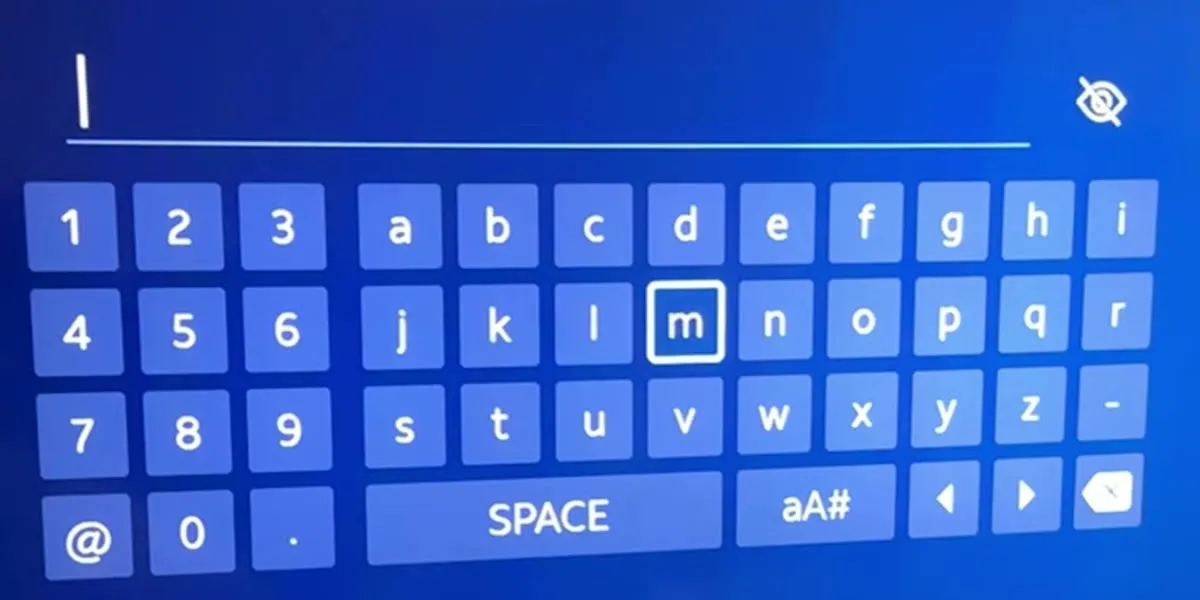
"That is really annoying and slow. I wish I could do it with my phone."
If your eyesight isn't what it was, the letters are small and the highlight is easy to lose. When I reached the end, all I could do was hope I'd typed it right.
It worked, and the box went straight to checking for updates. You sat down to watch TV, and now you're waiting for software to download. At my parents' the day before, this part had taken a while, and I was hoping my internet was faster than theirs.
While it downloads, the box fills the wait with trivia. Even Mochi, my cat, got bored and stretched out under the table.
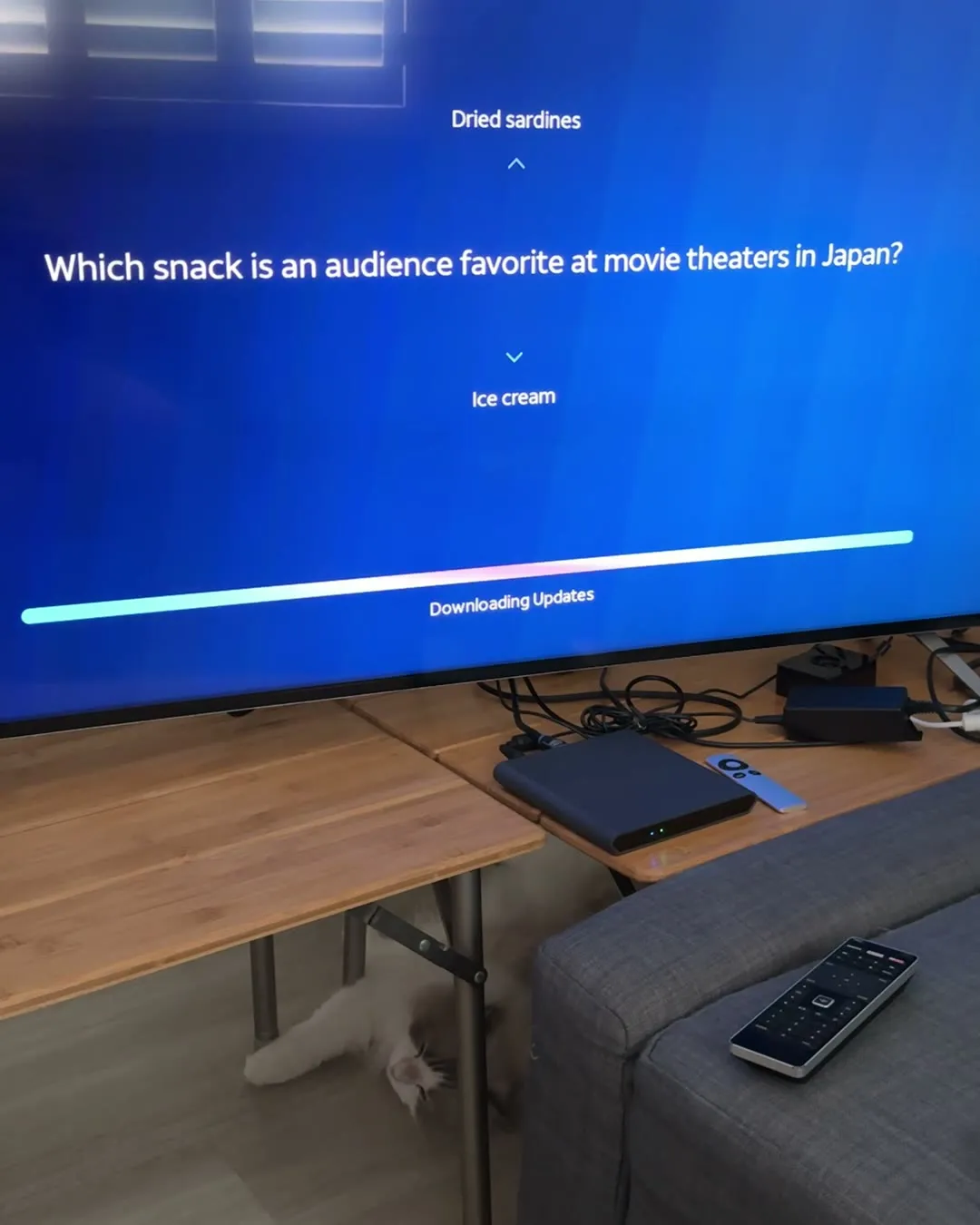
"I like how they put these little trivia there, right? To keep your anger at bay."
Then the box announced it was going to restart. I still hadn't watched a minute of TV.
Signing in to DirecTV takes a phone, or a lot of patience
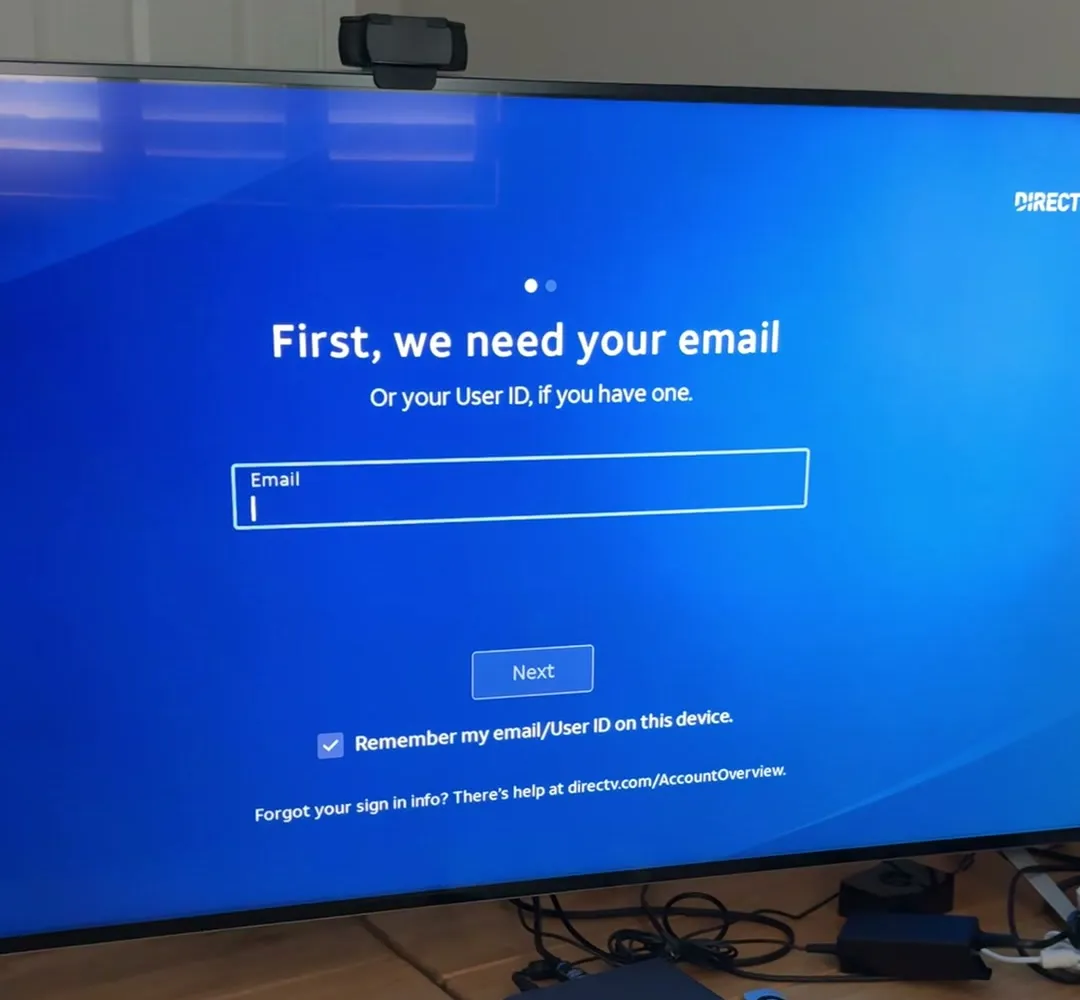
After the restart comes the sign-in, the same screen that stopped us at my parents'.
"This is where things get a little more confusing, right? They tell you what to do, but if you don't know what your sign-in is, you're kind of screwed."
There are two ways through. One is the QR code: you point your phone's camera at it, a web page opens on the phone, and you sign in there. The other is a button to sign in with the remote, on the same letter-by-letter keyboard as the Wi-Fi password.
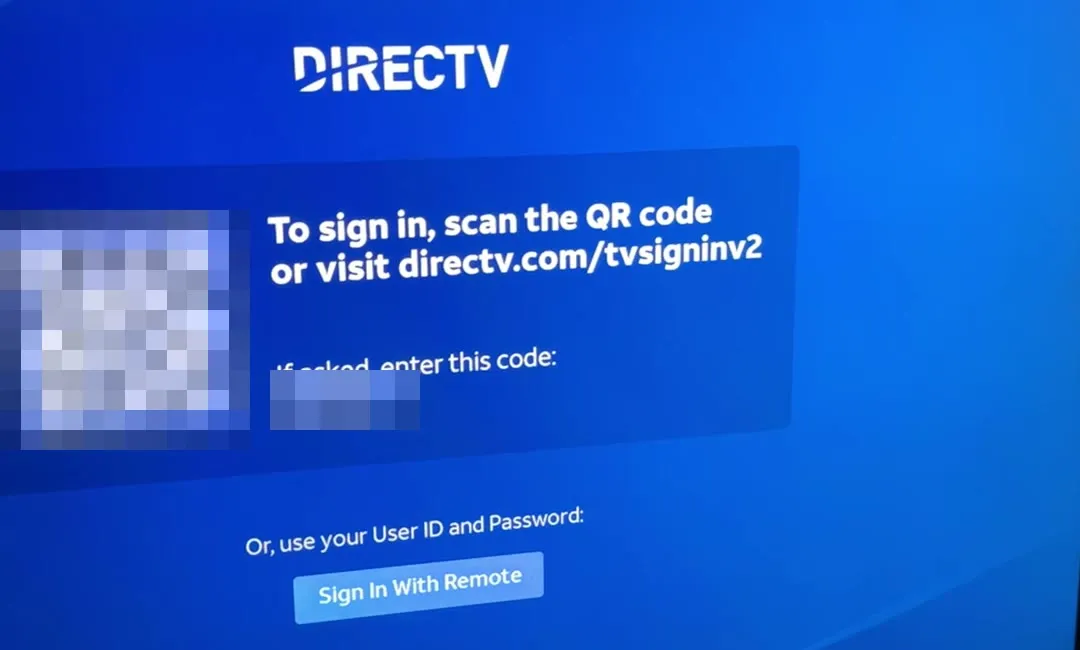
"If you're a little older, you don't know how to do this QR code thing."
At my parents' I'd used the remote, an email address and all. This time I used my phone, and it took a fraction of the time.
"Signing in on the phone is definitely faster, but I already had the account info saved, so it was easy for me."
That's the catch. The quick way needs a smartphone, the habit of pointing its camera at a screen, and the account details saved on it. In 2025, more than one in five Americans 65 and older didn't own a smartphone.3 The way that needs only the remote is the slow one.
Then come the Google questions
Signed in, I still couldn't watch anything. The box runs Android TV, Google's software for TVs, and next came a run of screens about Google.
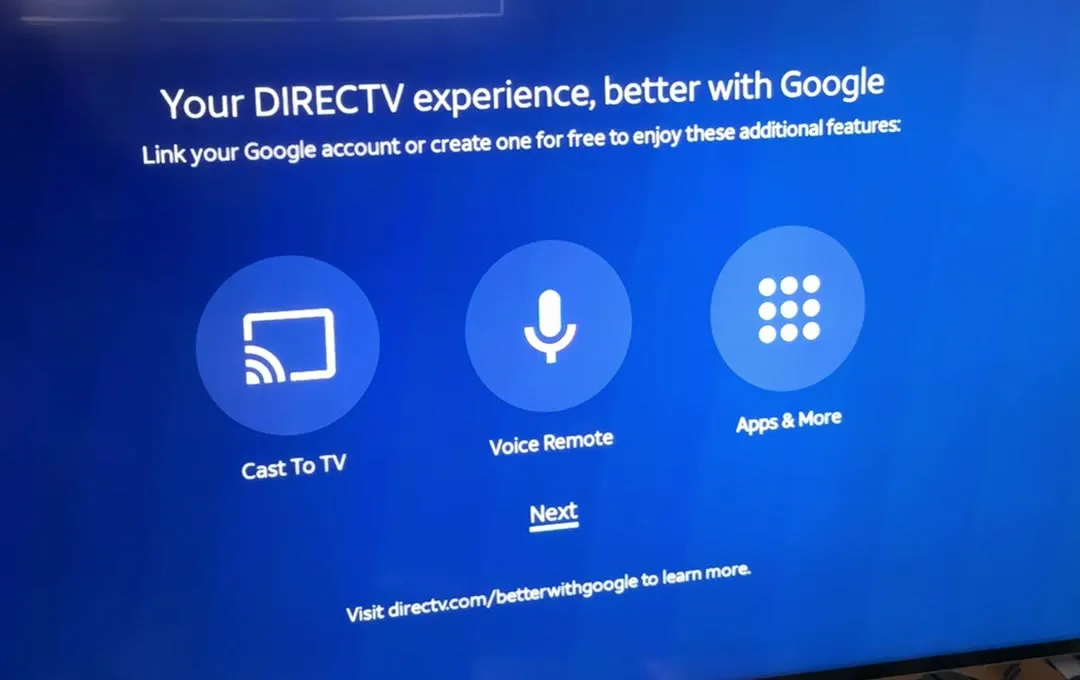
"If you don't know what this is, it's kind of confusing. I'm going to say no because I don't have time for that."
After that came Google's terms, then a list of settings to switch on or off, such as using your location and sending data to help improve Android. I turned them off.
"Most people are just going to leave these on, probably."
It's easy to see why. Each screen is one more thing between you and the TV. At my parents' it had also asked us to pick favorite channels and offered upgrades along the way. Then came a tour of features, including a voice assistant.
"Maybe the voice assistant would be useful, but again, it's not clear what any of this is or how it works."
Then the box said there were about two minutes left while it added channels.
"Gone are the days where you just plug in a cable."
Two minutes from the end, the screen goes dark
Then the screen went dark, and the TV said No Signal again. I think the box had a glitch. What I did next, though, is what most people would do, and it didn't work.
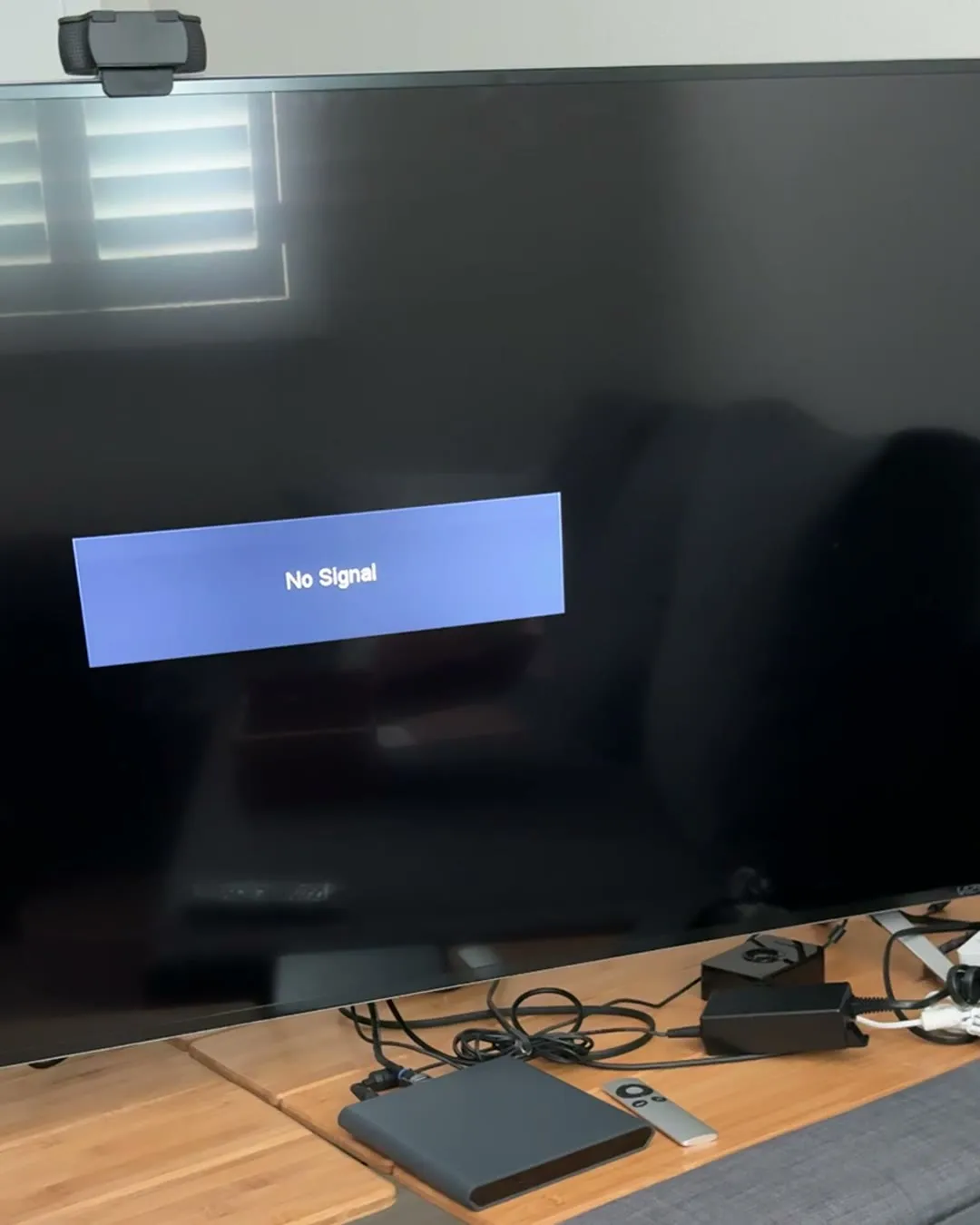
I unplugged the box and plugged it back in, the way I've turned things off and on all my life. Its light came on, then went off again. It felt a little warm, and I wondered if I'd broken it, or if it was drawing too much power, so I gave it an outlet of its own. Same thing.
I hadn't broken it. It was off. The box has no power switch of its own, and once it's plugged back in, it stays off until you press ON on the remote. I only worked that out by asking Claude.
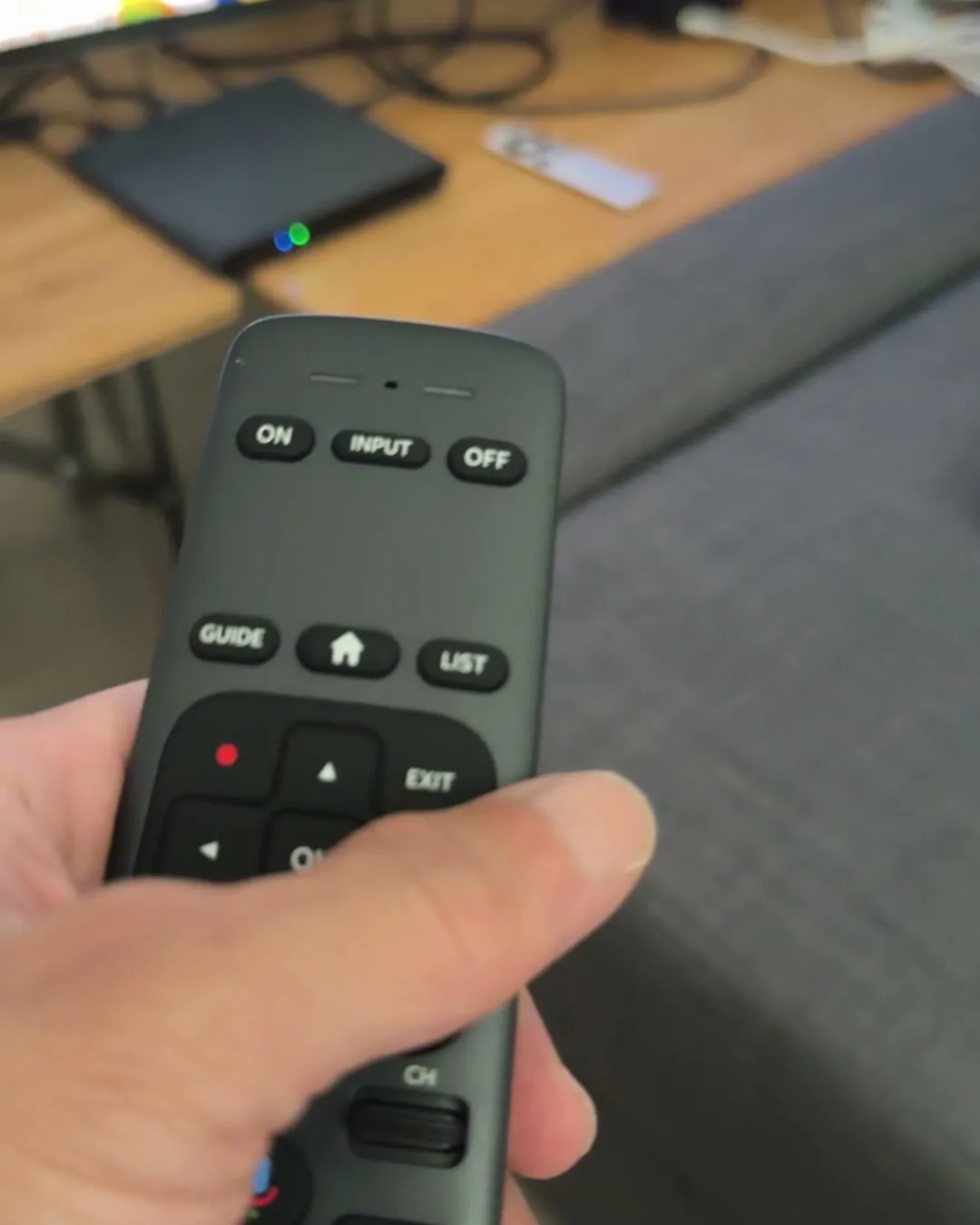
"I thought it just cycled on. I didn't even know there was a power button, and I didn't even know it was off."
It's a small thing, but it's the kind of small thing that ends with a parent on the phone to their kids, sure they've broken the new TV.
Set up, but not easy to use
Getting through setup was only half of it.
At my parents', once it was all working, my dad sat down with the new remote to find something to watch. He likes sports and the news. Getting to them was hard.
This is what greets him when he turns it on:
- down the left side, a column of small icons with no words under them
- across the top, a row of channel logos
- in the middle, the channel playing in a small preview window, not full screen
- around it, rows of suggestions: shows, movies, live TV you might like
Somewhere behind one of those icons is the guide.
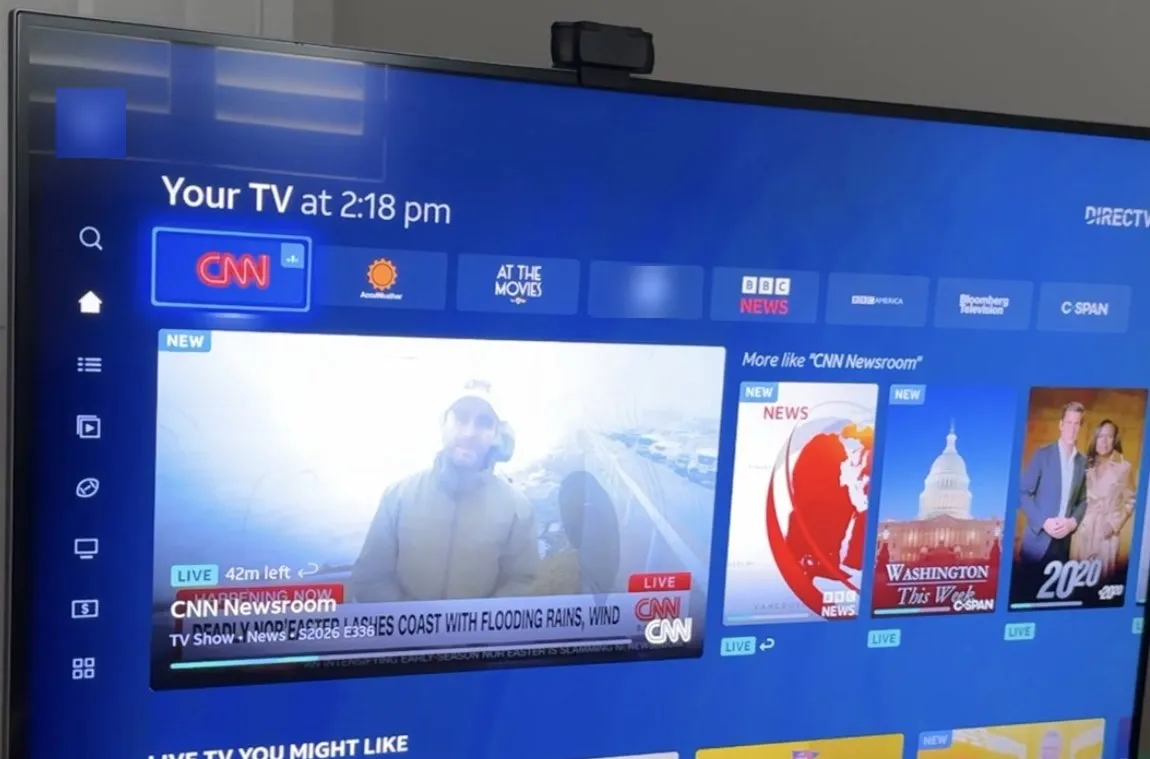
If you've used a smartphone for years, you know this kind of screen. You poke around until you find what you want. That works if you already know how these screens behave. For my dad, it isn't clear how to get to something or how to search for it. There are too many options.
Open the menu down the side and the icons get names: Search, Home, Guide, My Library, Sports Central, On Demand, Video Store, Apps and Settings. That's nine places to look for one channel.
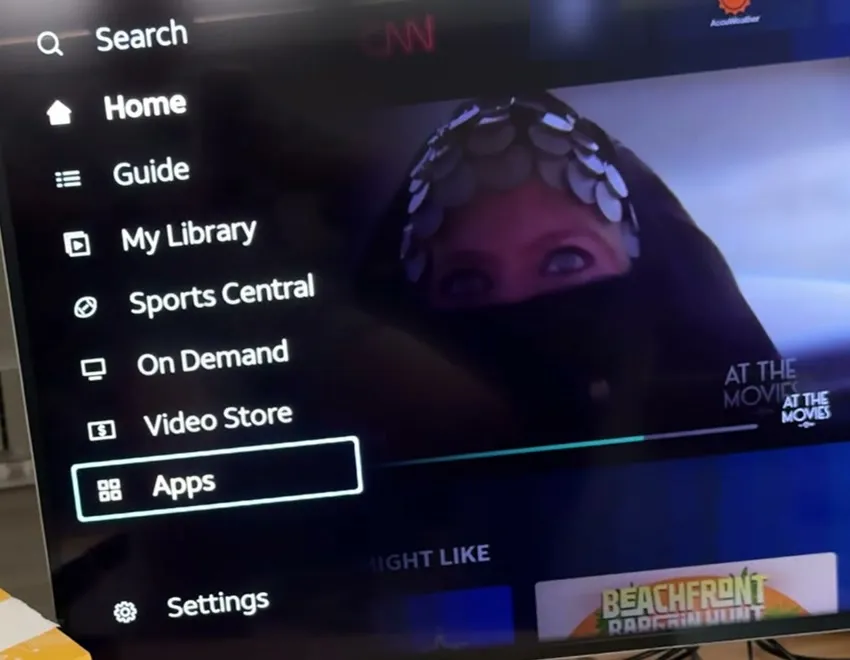
Moving around it means steering a highlight with the remote's arrows. My dad has mild Parkinson's, which makes a remote harder to use on some days. It slows movement, and not predictably, so a small task like buttoning a shirt can be harder one day than the next.4 He also finds it hard to keep track of where the highlight is on the screen.
The guide doesn't make it simpler. On the box I set up, it lists 340 channel numbers. I can't remember channel numbers myself, so I'm not sure how my parents will. Searching instead means the letter-by-letter keyboard again, or the voice assistant.
And the box keeps adding things. After setup, a full-screen announcement popped up over everything.
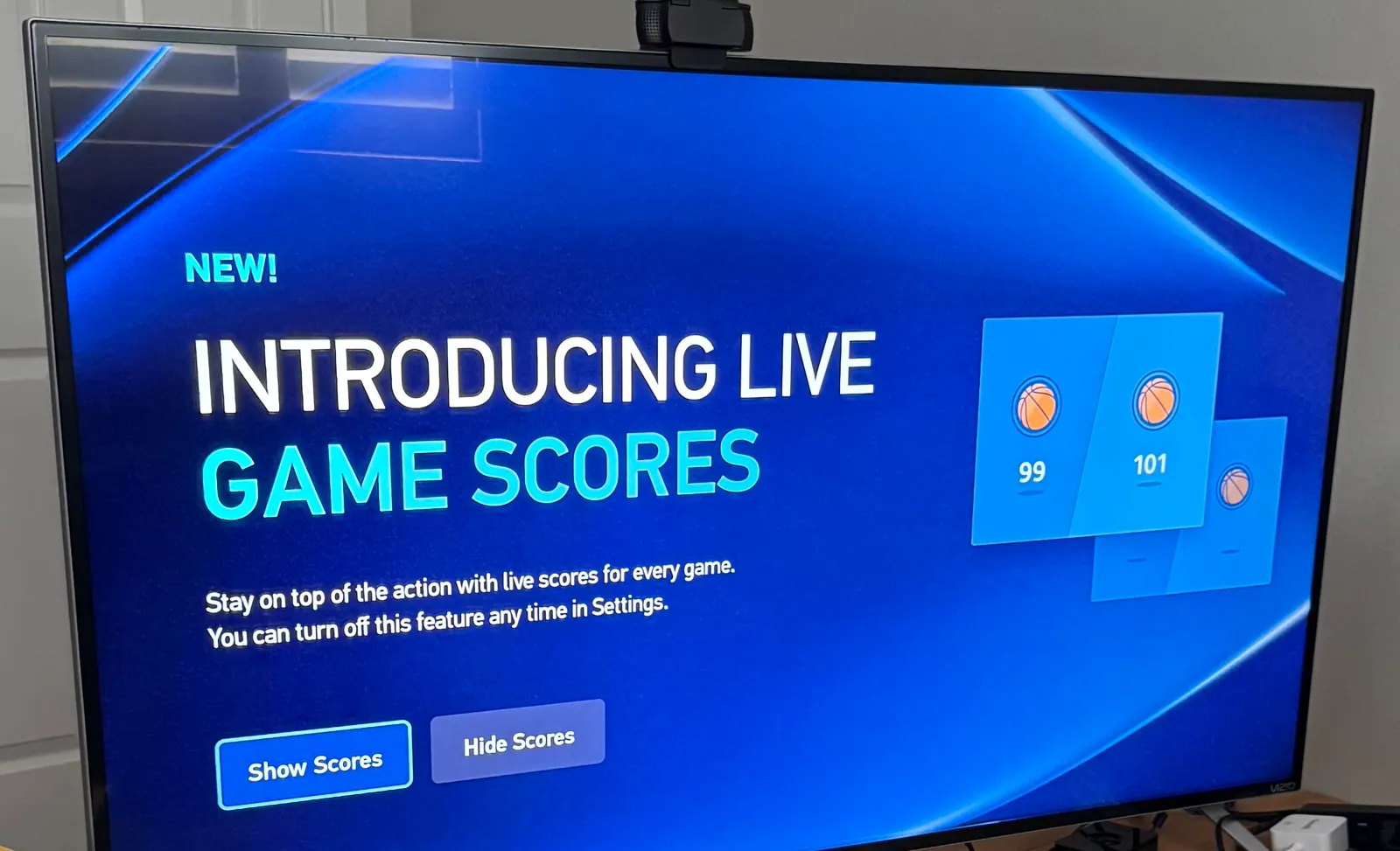
It says you can turn this off any time in Settings. Settings is the last of those nine items in the side menu, behind an icon with no name.
Not everything on the screen comes with the service, either. Some of the movies in the rows on the home screen have a small price under the poster.
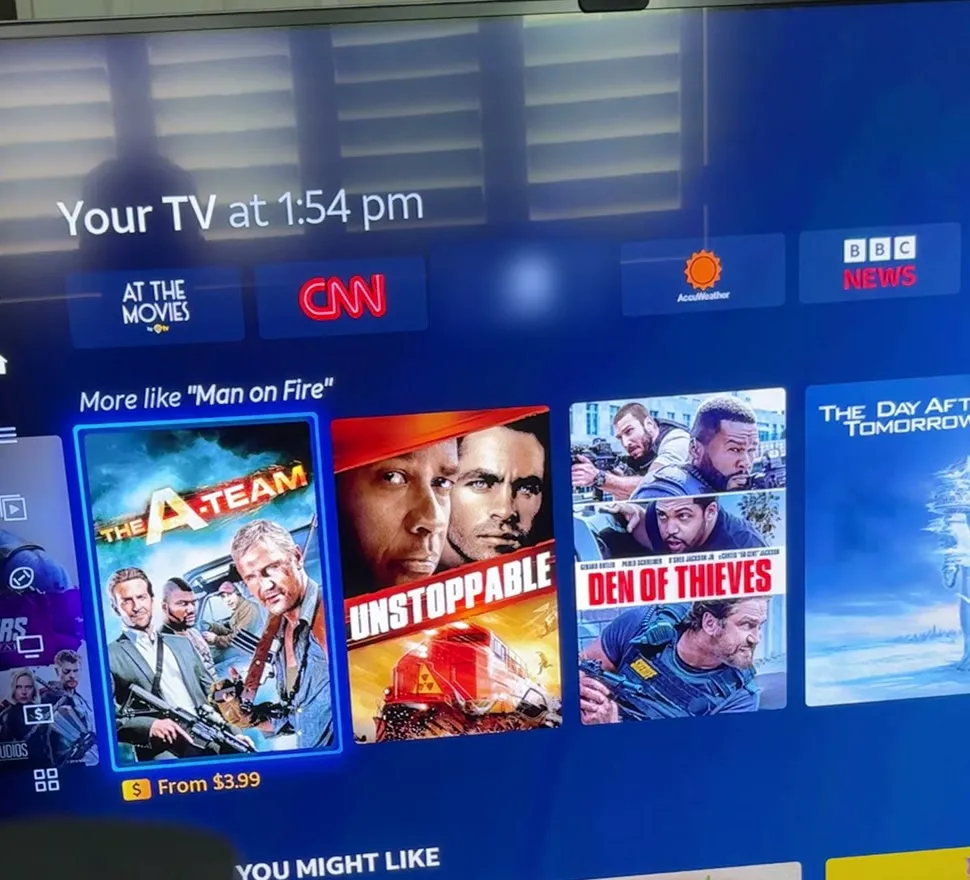
"Oh, you have to buy those. ... Why are you showing me that?"
Some things turn up twice. Netflix is inside DirecTV and on their Apple TV, and it wasn't clear which one to use.
Then there are the remotes. My parents now have four:
- the Samsung TV's remote
- the sound bar's remote
- the Apple TV's remote
- the new DirecTV remote
Each one means remembering what it does and which input the TV has to be on for it to work. Four remotes sit on the coffee table, and only one of them is the right one at any moment.
All of this is why we're building BoomerOS for TV
Still, my parents are using the DirecTV box now. I showed my dad the basics, and when he gets stuck, my mom helps him, on top of everything else she already does for him.
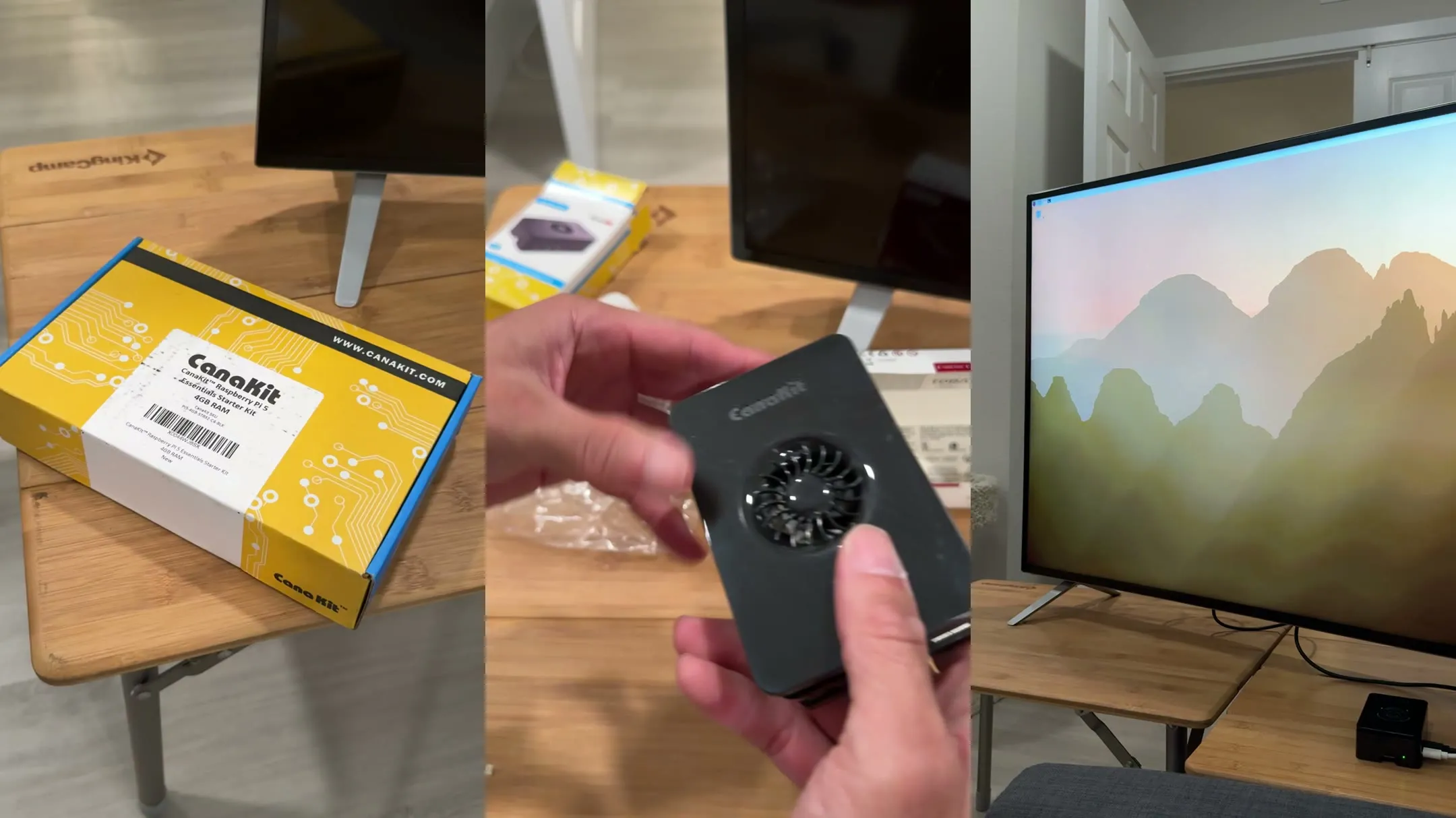
It's because of all this that my friend Eric and I, who run Boomers Included together, are building BoomerOS for TV. It's meant to be one simple home screen that does the remembering, so my dad can get to the game or the news without four remotes, an input list or a guide of 340 channels. It runs on a Raspberry Pi, a small computer that plugs into the TV. Part 1 was setting that up.
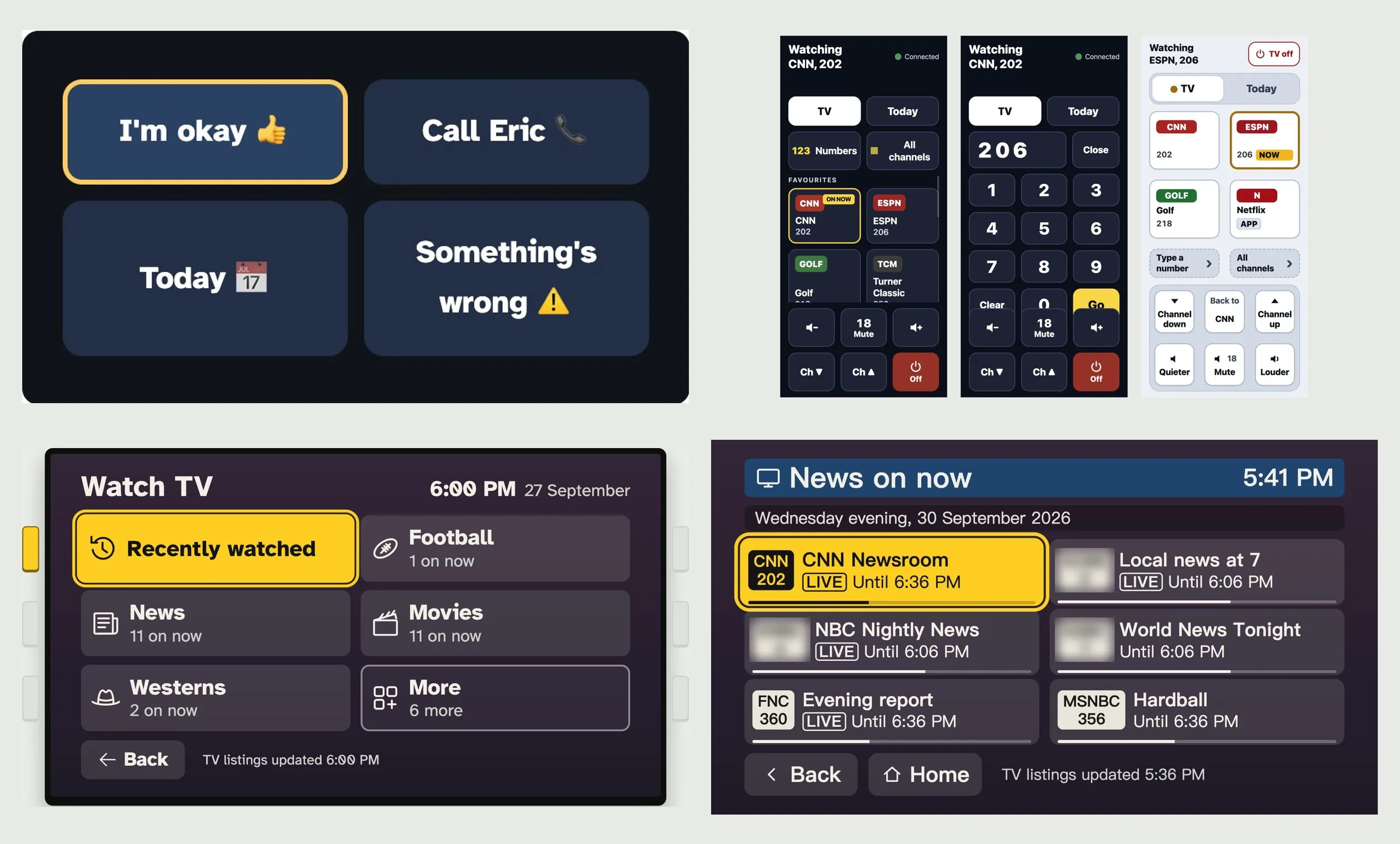
The Pi works, and it can already change channels on the DirecTV box I took home without anyone touching the remote. Now I'm working on the screens, and I've written up how they've changed so far. Here are two early versions, running on my computer while we try them out.
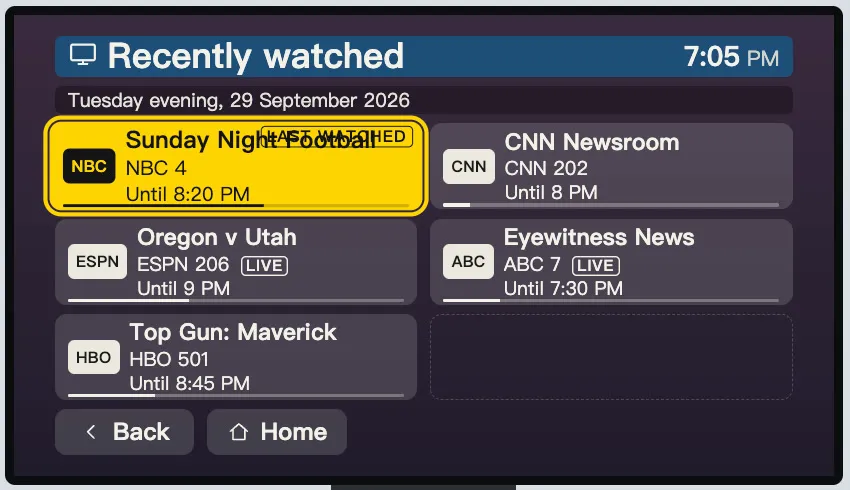
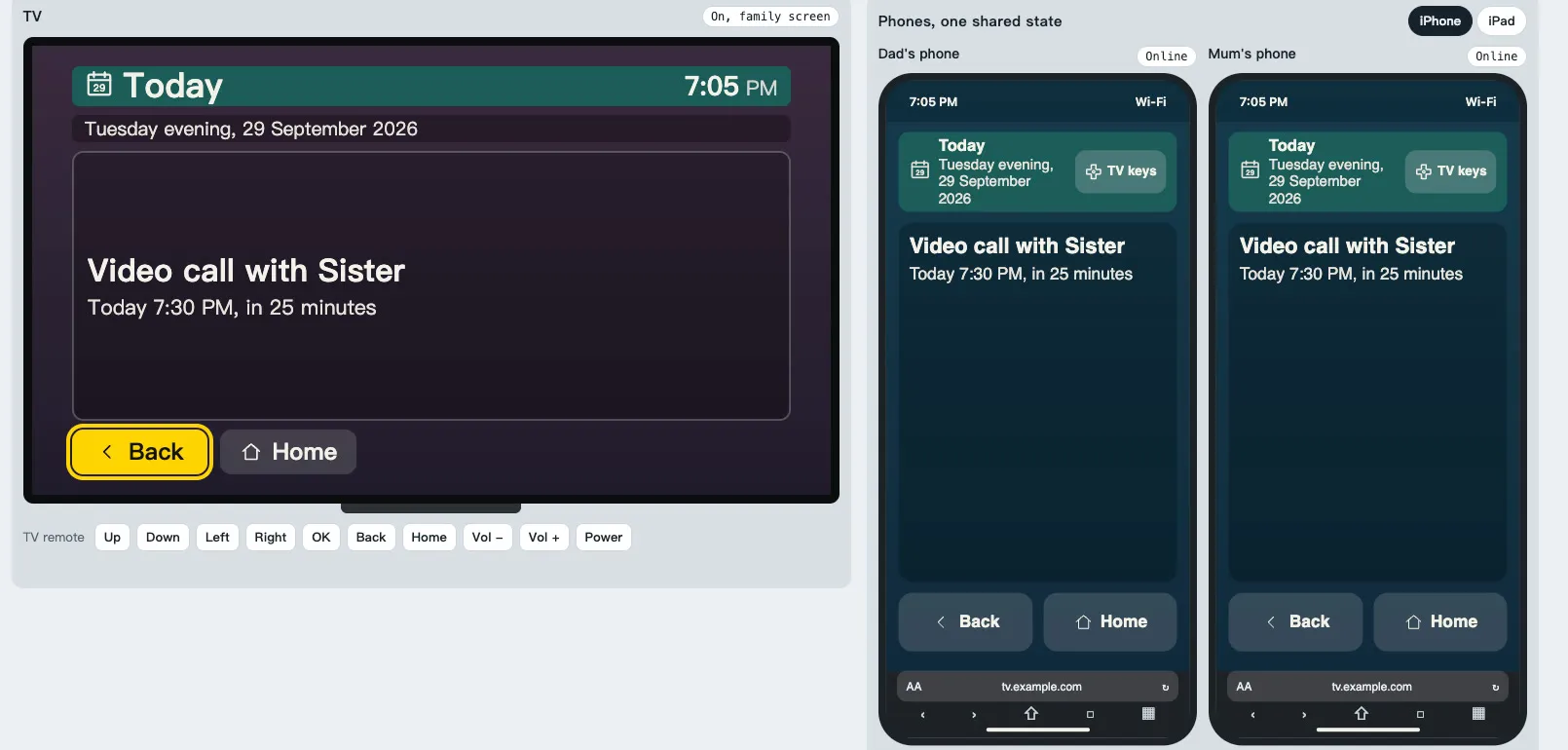
I'm hoping to have the first BoomerOS for TV box in my parents' living room in the next week or two, once I've finished the screens and tested them. Then the real test starts: whether my dad can get to the game without asking anyone.
Tips for setting up DirecTV for a senior
Know what's coming. On my TV, getting the Gemini working took these steps, in this order, about an hour in all:
- Switch the TV to the right input.
- Choose your Wi-Fi and type its password with the remote.
- Wait for updates and a restart.
- Sign in to DirecTV, by QR code or with the remote.
- Link a Google account (optional).
- Turn Google's settings on or off.
- Wait while it adds channels.
A few things that help:
- Find the sign-in details first. If someone else arranged the service, such as a community, a landlord or a building, ask them which account to use before you create a new one. For forgotten details, DirecTV's sign-in screen points to directv.com/AccountOverview.
- Allow at least an hour, and do it at their place, with them there, so you can leave it working.
- Sign in with your phone if you have one. Scanning the QR code is much faster than typing with the remote.
- Use a network cable if the router is near the TV. It skips the Wi-Fi password.
- You can skip the Google screens. The box works without a Google account.
- If the screen goes dark, press ON on the DirecTV remote before you unplug anything.
- Leave the TV on the right input, and show them which button gets back to it.
In a 2016 survey, almost half of Americans 65 and older said they usually need someone else to set up a new device or show them how to use it.5 If you're that someone, the one your parents call when the TV stops making sense, follow along as we build something simpler. The same page tells you how to write to us about what your parents' setup asked of them.
Sources
- Pew Research Center, 83% of U.S. adults use streaming services, far fewer subscribe to cable or satellite TV (published 2025)
- Pew Research Center, How Americans' opinions and use of AI differ by age (published 2026)
- Pew Research Center, Mobile Fact Sheet (published 2025)
- Parkinson's Foundation, Bradykinesia (slowness of movement) (published 2026)
- Pew Research Center, Tech Adoption Climbs Among Older Adults (published 2017)